
Dashboard
Context
The Context page holds what the translator is told besides the string itself: the terms you always translate one way, the corrections it learned from you, and notes on keys whose source is too short to say what it means.
The Context page
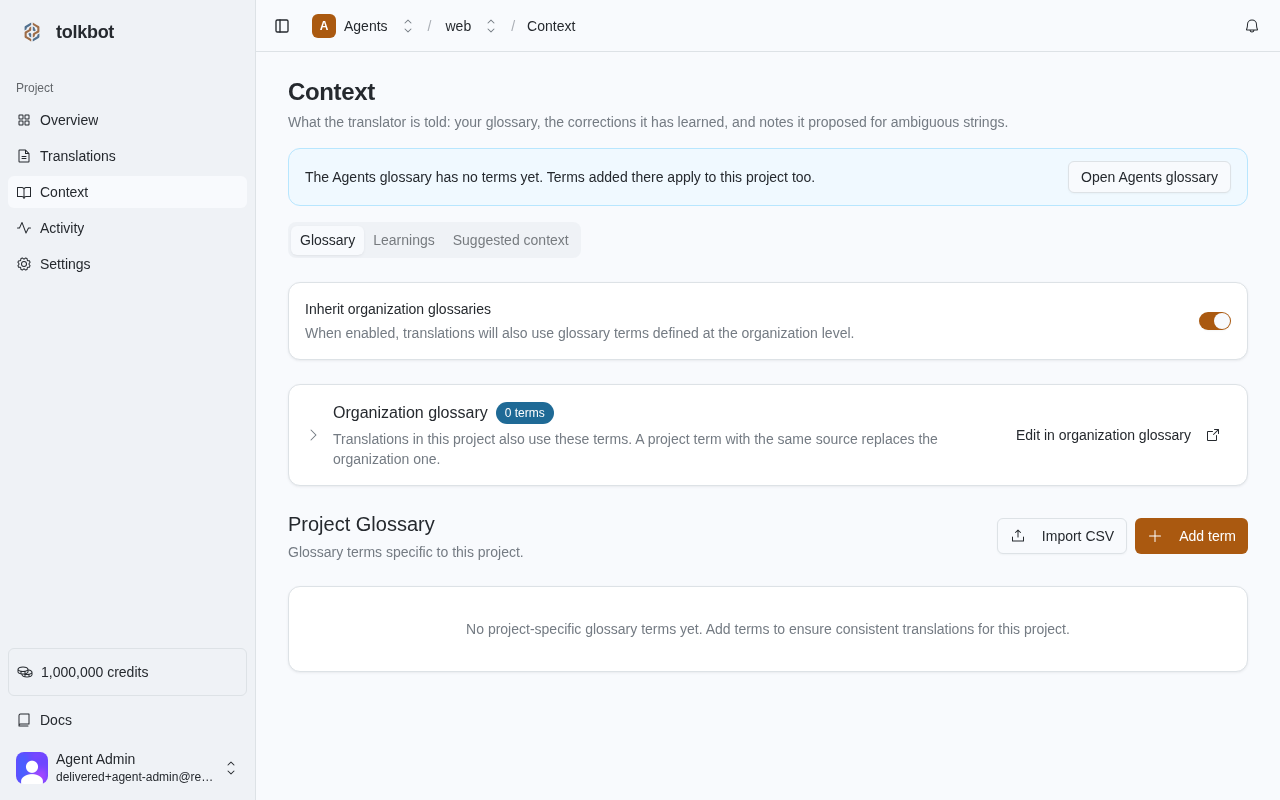
A project's Context page has three tabs:
- Glossary, the project's terms, and the organization's terms it uses
- Learnings, corrections made in this project
- Suggested context, notes TolkBot proposes for ambiguous strings
The organization's Context page, which you reach by clicking the organization's name in the top bar and then Context, has Glossary and Learnings. Its glossary applies to every project, and its Learnings tab lists the learnings of every project.
Glossary
A glossary is a list of source terms with their approved translations. When a string uses a term, TolkBot tells the model which translation to use and checks afterwards that it did.
Example
| Source (en) | Target (fr) | Context |
|---|---|---|
| Dashboard | Tableau de bord | Main navigation item |
| Submit | Envoyer | Form button, max 15 chars |
| Workspace | Espace de travail | — |
Organization and project glossaries
A term can belong to the organization or to one project:
Organization-wide
Organization glossaries apply to all projects in the organization. Use these for company-wide terminology that should be consistent everywhere.
Create and manage the organization glossary on the organization's Context page, under Glossary. From a project, click the organization's name in the top bar, then Context.
Project-specific
Project glossaries apply only to a single project. Use these for project-specific terminology that may differ from the organization standard.
Create and manage a project's glossary on the project's Context page, under Glossary.
Projects use the organization glossary as well as their own by default. Turn this off with Inherit organization glossaries on the project's Context → Glossary tab. When both have the same term, the project's translation wins.
Do-not-translate terms
Mark terms that should never be translated:
| Term | Do not translate |
|---|---|
| TolkBot | Yes |
| GitHub | Yes |
| API | Yes |
When a term is marked as do-not-translate, TolkBot preserves it exactly as-is in all translations.
Notes on a term
Add a note to help the model understand how a term should be translated:
- "Dashboard menu item, max 15 characters"
- "Legal term, use formal register"
- "Brand name, always capitalize"
Context helps the AI make better translation decisions without overriding its judgment.
Translations per language
An entry holds an approved translation per target locale. A translation for the target locale goes into the prompt as the word to use. The model still translates the whole string around it, so an entry is not a fixed translation of a key.
Import a glossary from CSV
If you already keep a terminology list, import it instead of adding terms one at a time. Open the organization's Context → Glossary tab or the project's Context → Glossary tab and choose Import CSV. The dialog has a Download example CSV button with a file you can start from.
File format
A UTF-8, comma-separated file with a header row. Column order doesn't matter, and header names are case-insensitive.
| Column | Required | Meaning |
|---|---|---|
source_locale | Yes | Locale of the source term, e.g. en |
target_locale | Yes* | Locale of the translation, e.g. nb or pt-BR |
source_term | Yes | The term as it appears in your source strings |
target_term | Yes* | The approved translation |
notes | No | AI context for the term |
do_not_translate | No | true to keep the term as-is in every locale (true/false, yes/no) |
* The columns must be present, but the values can be empty on a do-not-translate row or a notes-only row.
source_locale,target_locale,source_term,target_term,notes,do_not_translate
en,nb,Dashboard,Oversikt,"Navigation item, keep it short",
en,de,Dashboard,Übersicht,,
en,pt-BR,Workspace,Espaço de trabalho,,
en,,TolkBot,,Product name,true
Each row is one term in one target locale, so a term with five translations takes five rows. They're combined into a single glossary entry. Wrap a value in double quotes if it contains a comma, a quote or a line break, and write a quote inside a quoted value as "". Locales can be written as pt-BR, pt_BR or ptBR; they are stored the way TolkBot's settings spell them (pt-br). The dialog shows locales TolkBot doesn't support as invalid rows.
Preview and conflicts
Nothing is written until you confirm. First, choose whether the terms go into the organization glossary or into one project's glossary. The preview then sorts every row into one of these:
- New: a new term, or a translation or notes added to an existing term.
- Duplicate: the glossary already says exactly this. The row is skipped.
- Conflict: the glossary already has a different translation, different notes or a different do-not-translate setting for this term. The row is skipped unless you tick Replace on it, or Replace all conflicts.
- Invalid: the row can't be imported, and the preview says why. The row is skipped. This includes a row that disagrees with an earlier row in the same file.
When the import finishes, you see how many terms were created, how many were updated and how many rows were skipped. Imported terms work like terms you added by hand: project terms take priority over organization terms, and inheritance and relevance filtering apply as usual.
Limits
- Files up to 1 MB and 5,000 rows. Split larger lists into several files.
- Terms up to 500 characters, notes up to 2,000 characters.
- Rows are sent in batches of 100. If an import stops partway, the rows already imported are kept. Retry continues from where it stopped, and importing the same file again adds nothing twice.
How glossaries affect translation
TolkBot puts into the prompt only the entries whose source term appears in the string being translated. The model is told that a term in the source must appear in the translation as the approved translation, and that do-not-translate terms stay as they are.
After translation, TolkBot checks the output for each term. A term may be inflected the way the sentence needs it: plurals, case endings and definite forms count, and so does a verb built on the term with a short prefix, such as Polish zafakturowany ("invoiced") from faktura ("invoice"). A missing term flags the key glossary_violation and sends it to the stronger model, with the missed term named. The review pass at the end of the job checks the terms again on what was finally written, including translations served from memory. A term it can't place shows up under Needs you on the project's Overview page.
Glossary locales
An entry's source and target locales are matched by language, then region:
- An entry for exactly the job's locale always applies.
- An entry for the base language applies to its regions: an
enterm applies to anen-usproject, and apttranslation to apt-brtarget. - Never the other way round, and never across regions: an
en-gbterm applies to neitherennoren-us. noandnbare the same language.nn(Nynorsk) is its own.
When several entries apply, the most specific wins: the project's exact locale, then the project's base language, then the organization's exact locale, then the organization's base language.
Learnings
A learning is a correction TolkBot remembers: the source text, the translation you want instead, and why. It is used in later translations of the same project into the same language, so the model doesn't repeat the mistake.
Where learnings come from
- A comment on a pull request. Mention
@tolkbotwith a correction such as"Submit" should be "Envoyer" not "Soumettre", and TolkBot fixes the key and keeps the correction as a learning. See Feedback in a pull request. - An edit in the dashboard. On the Translations page, switch on Save as Learning before saving your edit, and add a reason if you like. The learning is created when the edit reaches the pull request.
- Keeping your value over the reviewer's. Keep mine on a review suggestion adds a learning, so the same value isn't flagged again.
- A translation job's page. Open a key in the job and choose Add Learning.
- The CLI.
tolkbot learnings addwrites one from scratch, andtolkbot set --learnsaves one with a value you set.
The dashboard has no form for writing a learning from scratch; there, a learning starts from a translation someone corrected. A learning from the CLI can also be a note on its own, such as "address the reader as du", which is used for every string translated into its language.
Each learning has a type, which says what kind of correction it is:
| Type | Description |
|---|---|
incorrect-term | A term was translated with the wrong word |
wrong-tone | The tone or formality doesn't match expectations |
cultural-context | The translation isn't culturally appropriate |
technical-accuracy | A technical term was incorrectly translated |
other | Other correction |
Where learnings apply
A learning belongs to the project it was made in. It is used when that project translates into the same language, and no other project sees it. Inherit organization learnings on the project's Learnings tab, on by default, also uses the learnings that belong to the organization rather than to one project.
Removing a learning
To stop a learning from influencing translations, delete it from the project's Learnings tab or the organization's. Deleting can't be undone, and the dashboard has no way to edit a learning's text. To set one aside without deleting it, use tolkbot learnings archive in the CLI.
Key context
Some source strings don't say enough to translate them well. "Close" can be a verb or an adjective, "Post" a noun or a button, and the right word in the target language depends on which. A context note on the key tells the translator.
Open the key on the Translations page and edit Context in the inspector, for example "button label, max 10 chars". The note goes into the prompt every time the key is translated or regenerated. A key with a note shows an icon in the key list.
If your code already carries a description for the key, TolkBot reads it from there, and that replaces a note written in the dashboard.
Suggested context
At the end of a job, TolkBot looks at the keys the translator said were ambiguous and proposes a context note for each, up to 50 per job. Keys that already have a note are skipped.
The suggestions wait on the Suggested context tab, each with the key, the proposed note and why. Accept saves it as the key's note, Dismiss drops it, and Accept all takes every one. The Overview page's Needs you list counts them too, and the key inspector shows a key's suggestion where you edit its note.
An accepted note is used from the next translation on. To use it on a value already written, regenerate the key.