
Dashboard
Translations
The Translations page lists every key of one language with its translation and its state. You edit a value here, lock a key, retranslate, translate what is missing, and ship your changes as a pull request.
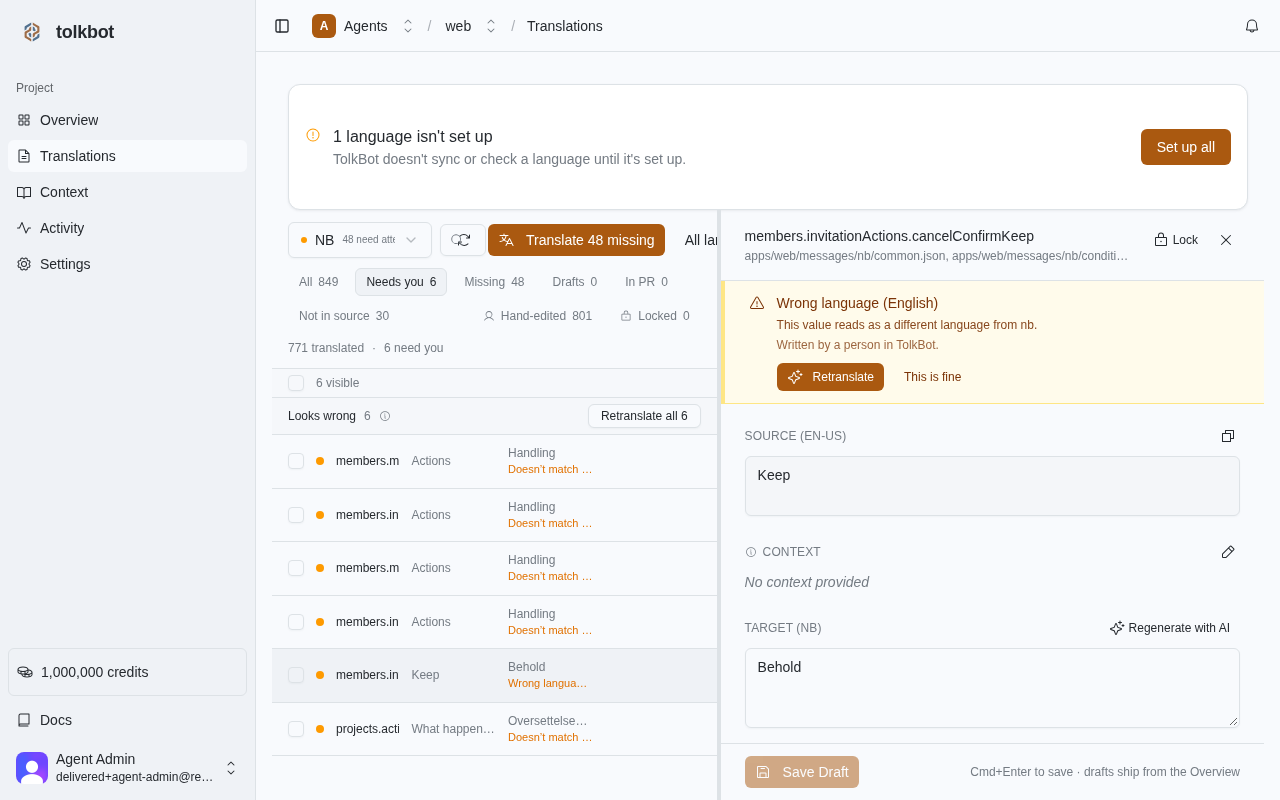
Picking a language
The language picker at the top lists the project's languages with where each stands: Not set up, Setting up, Failed to set up, how many need attention, or Set up. Add a language… at the bottom of it opens the Add a language dialog. The page opens the first language that is set up. Opening one that isn't set up shows why in place of the keys and opens the Add a language dialog for it.
The line under the picker sums up the language: how many keys are translated, how many need you, and the open pull request.
TolkBot reads the language's files from your repository each time the page loads, so it shows what is on your default branch now. The refresh button beside the search box checks the files against the repository again and runs a health scan on what is in them.
Finding keys
Search matches the key, the source text, the translation and your draft. The filters below it narrow the list to one state:
| Filter | Keys shown |
|---|---|
| All | Every key |
| Needs you | Keys TolkBot left for a person to decide, in groups (below) |
| Missing | Keys the base file has and this language doesn't |
| Drafts | Keys with a change you saved and haven't shipped |
| In pull request | Keys whose change is on the language's open pull request |
| Not in source | Keys this language has and the base file doesn't |
Written by a person shows only values a person wrote, and Locked only locked keys. They combine with the filters above.
The dot beside a key says the same at a glance: red for missing, amber for needs you, blue for a draft or a change in a pull request, violet for not in source. A key with none is done.
What needs you
Needs you groups its keys by why, and each group can be settled at once from its header:
| Group | Why it is here | Settle the group |
|---|---|---|
| Looks wrong | Already in the repository, and the health scan found it in another language, left as the source, or not saying what the source says | Retranslate all |
| Reviewer suggests a change | The review pass proposed a better wording it didn't apply on its own | Apply all |
| Needs wording | The review pass found a problem but couldn't propose a fix | Write the translation, or add context and regenerate |
| Source changed | The source text changed after the translation was written | Keep translations, Retranslate |
| No record of who wrote this | The translation was there before TolkBot tracked the language, and you chose to review those | Looks right or regenerate each |
A group action leaves out locked keys, keys with a draft and values a person wrote, and says what it left out. Retranslating and applying save drafts; nothing reaches your repository until you ship them.
Not in source works the same way: Remove stages the removals, and the keys leave the file when the drafts ship. TolkBot never removes these on its own, except when a push removes the key from the base file. See Removed and renamed keys.
The key inspector
Click a key to open it in the inspector beside the list.
The top says what the key is: its name and file, who wrote the value (translated by TolkBot, written by a person, no record of who wrote this, translated by TolkBot, corrected by the review pass), and whether it is locked, in a draft or in a pull request.
Below that, the inspector shows what TolkBot knows about the key:
- The source changed. The old and new source text side by side, with Keep translation if the translation still fits. Keeping it tells TolkBot not to retranslate it for this change.
- The source was edited without changing what it says, such as a typo fix. The translation was kept on purpose, and the inspector shows the old source.
- A health finding: Wrong language, Not translated, Doesn’t match the source or Placeholders differ from the source, with Retranslate and This is fine. See Health scan.
- A review finding: with a suggestion, Apply saves it as a draft and Keep mine keeps your value and adds a learning so the reviewer doesn't raise it again. Without one, Dismiss.
- No record of who wrote this: Looks right records the value as written by a person.
- Not in source: Remove stages the removal.
Then the strings themselves: the source, the key's Context note, and the translation. See Context for the note.
Editing a value
Type in the translation field and choose Save Draft (Cmd+Enter), which also moves to the next key. Revert throws the draft away.
A draft is yours: TolkBot's automatic runs leave a key with a draft alone until you ship or discard it.
Switch on Save as Learning before saving to have the correction used in later translations into this language. You can add a reason. The learning is created when the draft reaches the pull request, not when you save it. See Context.
Regenerate with AI
Regenerate with AI asks the model for another translation of this key. Add a note to steer it ("shorter", "less formal"), then Generate. Each try is listed beside the Original, up to 10. Pick one to put it in the translation field, then save it as a draft like any edit.
Sending your changes
When drafts are waiting, a bar at the top of the page says how many changes are ready in how many languages. The Overview page shows the same bar. Review and open pull request opens a dialog that lists every change by language, marked as written by AI or a person and as edited, added or removed.
- The bin beside a change discards that one change.
- Untick a language to leave its changes for later.
- Discard all throws away the changes in the ticked languages, after asking.
- Open pull request sends the ticked changes. Each language has its own pull request: the button says Update pull request #N when the one language you send already has one open, and Open N pull requests when you send several.
The dialog then follows each language until its pull request is updated, and links to it on GitHub and in Activity. If a change was left out, for example because it would have broken a placeholder, the dialog says why. The change stays waiting, and the Overview lists it under Needs you. You can close the dialog at any time; the pull request opens either way.
Locking a key
Lock, beside the line in the inspector that says what it does, keeps automatic translation off a key: translation jobs, Translate missing, retranslation and the pull requests a push opens all leave it alone, and so does the review pass. A pull request that would have changed it says so. Your own edits to a locked key still go through.
Lock a key to keep a translation you're happy with exactly as it is, or to keep a key untranslated on purpose. Unlock lets automatic translation touch it again.
Working on several keys
Tick keys in the list, or select all the visible ones, and a bar appears:
- Re-translate: shows what it will translate and what it leaves out, then saves new translations as drafts. It never opens a pull request.
- Lock and Unlock
- Keep translations: keep the translations of keys whose source changed
- Looks right: record values with no history as written by a person
- Remove: stage the removal of keys that aren't in the source
Translate missing
Translate missing at the top of the page translates every key this language lacks. It starts at once. Locked keys and keys with a draft are left out, and the page says how many.
Where the result goes follows Auto-create PRs under Settings → Workflow: on, a pull request opens when the job is done; off, the translations land as drafts for you to review and ship. See Workflow settings.
All languages does the same for several languages at once. Pick the languages, choose whether to open pull requests, and Detect Missing Keys shows a preview first: per language, how many keys it will translate and how many it leaves out and why. Start Translation starts it. If the repository changed since the preview, it asks you to look again.
Translations cost credits, which the job's page shows when it finishes. See Billing and credits.