
Dashboard
Organization and members
Everything in TolkBot belongs to an organization: its projects, glossary, learnings, credits and subscription, and the GitHub connection. You can be a member of several organizations and switch between them.
Organizations
The organization's name is the first part of the bar at the top of the dashboard. Click it to go to the organization's Projects. The arrow beside it lists your other Organizations, and Create organization at the bottom starts a new one. A new organization starts at onboarding, where an admin chooses a plan or starts a trial.
Each organization has its own subscription and credits. Nothing is shared between organizations, translation memory included.
Members
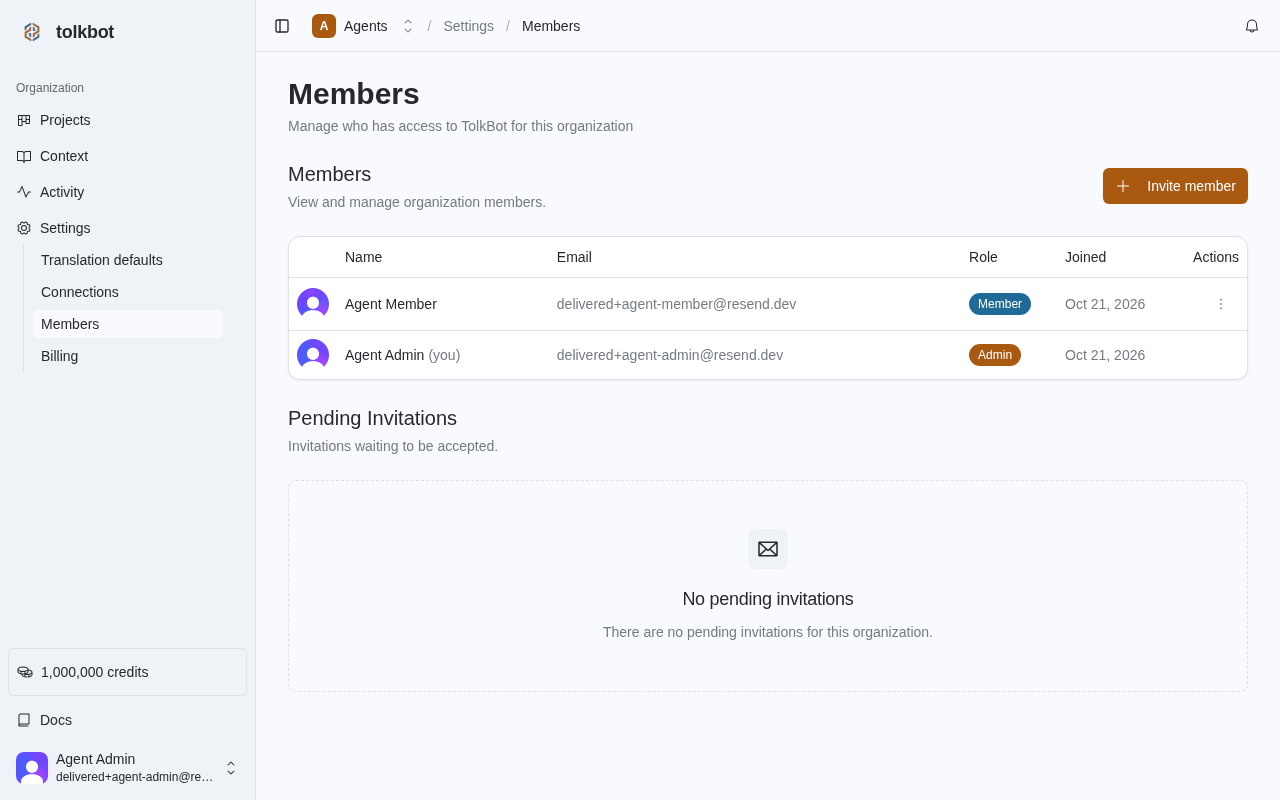
Settings → Members lists who has access to the organization, and the invitations not yet accepted.
Roles
A member is an Admin or a Member. Both work on every project the same way: they translate, edit, set up languages, change settings and open pull requests. An admin can also:
- invite people, with Invite member, and choose their role
- change someone's role, with Make admin or Make member
- remove someone, with Remove member, and cancel an invitation
- change the organization's billing email
- start a subscription. A member who opens an organization without one is asked to find an admin, and the page lists them
Nobody can change their own role or remove themselves from the Members page.
Emails meant to bring an organization into use, such as a trial ending, go to admins only. See Notifications and emails.
Several organizations on one GitHub account
GitHub lets an account install the TolkBot app once, but you can connect that installation to several TolkBot organizations. Open Settings → Connections in each organization and choose Connect GitHub. Each organization keeps its own projects, settings and pull requests for the repositories it uses.
One part of a repository can be managed by one organization at a time. On the New Project page:
- A repository whose root another organization manages says Managed by that organization, and Import is disabled. In a monorepo, you can still import a directory that organization doesn't manage.
- A path one of your own projects already uses says Imported as with the project's name, and links to it. A path an archived project holds is free once you delete that project.
Each organization's projects get their own pull requests. Two organizations can translate different apps in the same monorepo without seeing each other's work.
Archived projects
TolkBot archives a project when it loses its repository:
- the repository was deleted on GitHub
- the repository moved to an account TolkBot can't reach from this organization
- the TolkBot app lost access to the repository
An archived project leaves the Projects list. Archived projects at the bottom of that list shows them, each with why and since when.
An archived project keeps its glossary, learnings and history, and you can read them: its Overview, Context and Activity pages are there under a banner that says it is archived and why. Nothing can be translated or changed while it is archived, and its Translations and Settings pages are hidden.
Getting it back
A project comes back on its own when its repository does: when the repository is restored, when you give the TolkBot app access to it again, or when you install the app on the account it moved to and connect that installation to this organization. The banner says which applies.
If another organization manages the repository's path by the time it comes back, the project stays archived, and says so.
Deleting a project
Delete project on the archived project's banner, or in Settings → General for an active project, deletes the project and everything under it: its translation jobs, pull request history, glossary and learnings. It can't be undone. Type the project's name to confirm. Your repository and its files are not touched.
Admins and members are told by email when a repository is deleted, moved or loses access, and again when it is connected again.
Renaming a project
Settings → General renames a project. Its address in the dashboard changes with the name, and links to the old address keep working.
An open translation pull request keeps its branch after a rename. The new name applies to the next pull request; see Workflow settings.